
Running the classic real-time strategy game "State of War" (or its sequel "State of War 2: Arid Waters") on Windows 10 is possible, but it often requires some compatibility tweaks due to its age (released around 2001-2002). Here's a breakdown of the situation and solutions:
- Legacy Code: The game was designed for Windows 95/98/ME/XP. Modern operating systems like Windows 10 handle system resources, memory, and DirectX differently.
- DirectX Issues: It relies on older DirectX versions (likely 7 or 8) that aren't natively supported in the same way.
- Installation/Launch Problems: You might encounter errors during installation or when trying to start the game (e.g., missing DLLs, crashes, resolution issues, black screens).
- Copy Protection: Older CD-based copy protection schemes can sometimes interfere with modern OSes or virtual drives.
Solutions to Run "State of War" on Windows 10:
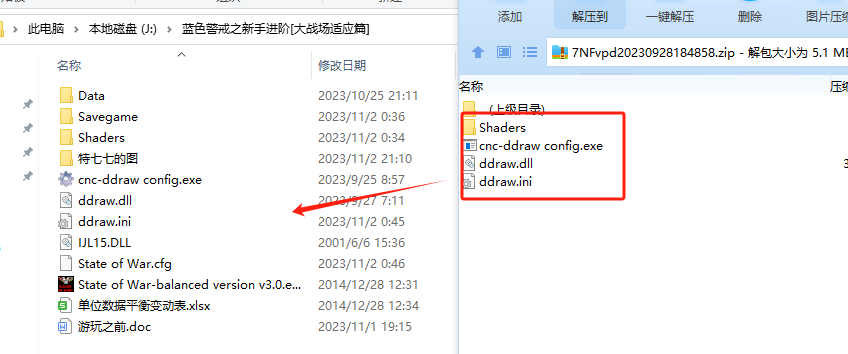
-
Run as Administrator (Crucial First Step):
- Right-click the game's main executable file (usually
State of War.exeorSOW.exein the installation folder). - Select "Properties".
- Go to the "Compatibility" tab.
- Check the box for "Run this program as an administrator".
- Click "Apply" and "OK".
- Launch the game. This solves many permission-related crashes.
- Right-click the game's main executable file (usually
-
Use Compatibility Mode:

- In the same "Compatibility" tab (right-click exe -> Properties -> Compatibility):
- Check the box for "Run compatibility troubleshopper" (Windows 10/11 might offer this first, try it).
- Manually set compatibility mode: Check "Run this program in compatibility mode for:" and choose Windows XP (Service Pack 3). This is often the most effective setting for older games.
- Disable Visual Themes & Desktop Composition: Sometimes checking these boxes helps with graphical glitches or crashes.
- Reduce Color Depth: Try "256 colors" if you experience graphical corruption (less common now, but worth a try).
- Click "Apply" and "OK". Launch the game.
-
Adjust Display Settings:
- Resolution: The game might default to a very low resolution or fail to start on high-DPI screens. Try running the game in windowed mode if possible (check in-game options or edit config files like
config.iniif they exist). If not, you might need to temporarily lower your Windows display resolution to 1024x768 or 800x600 before launching the game. - Virtual Desktop (DXWnd): For stubborn graphical issues, use DXWnd (a free DirectX wrapper/launcher). Configure it to run the game, forcing it into a window or adjusting its DirectX handling. Search for "DXWnd download" (use reputable sources).
- Resolution: The game might default to a very low resolution or fail to start on high-DPI screens. Try running the game in windowed mode if possible (check in-game options or edit config files like
-
DirectX & System Files:

- Install DirectX End-User Runtime Web Installer: Download and run the latest DirectX End-User Runtime installer from Microsoft. This ensures you have the necessary DirectX files, even if the game uses older APIs. (https://www.microsoft.com/en-us/download/details.aspx?id=35)
- Check for Missing DLLs: If you get specific DLL errors (e.g.,
d3dx8.dll,d3d8.dll), you might need to find and place the correct version of those DLLs in the game's installation folder. Search online for the specific DLL needed (be cautious of sources).
-
Installation from CD/ISO:
- Physical CD: If installing from the original CD, try copying the entire CD contents to a folder on your hard drive first, then run the installer from there. This can sometimes bypass CD read issues.
- ISO Image: If you have the CD, create an ISO file using software like CDBurnerXP or ImgBurn. Use a virtual drive program (like Daemon Tools Lite or Virtual CloneDrive) to mount the ISO and install from the virtual drive. This often works better than physical CDs on modern systems.
-
Community Patches & Fixes:
- Search for fan-made patches or fixes specifically for "State of War" on Windows 10. Sites like GOG.com sometimes offer versions with compatibility fixes built-in (check if they sell it). Modding communities or forums (like Steam Community discussions if available, or niche RTS forums) might have solutions.
Summary of Recommended Steps:
- Install the game (from CD copy/ISO or download if legal).
- Right-click the .exe -> Properties -> Compatibility Tab:
- Check "Run this program as an administrator".
- Set "Run compatibility mode for: Windows XP (Service Pack 3)".
- (Optional) Try disabling "Visual Themes" and "Desktop Composition" if needed.
- Launch the game. If it works, great!
- If it crashes or has issues:
- Try DXWnd.
- Temporarily lower your Windows display resolution.
- Search for specific error messages online for targeted fixes (e.g., missing DLLs).
- Look for community patches.
Important Notes:
- Copyright: Ensure you own a legal copy of the game before installing.
- Performance: The game will likely run at very high framerates. You might need to use in-game options (if available) or third-party tools like RTSS (RivaTuner Statistics Server) to cap the frame rate if you experience graphical glitches at very high FPS.
- Success Varies: Compatibility isn't guaranteed. Some installations work perfectly with just admin rights, others require more extensive tweaking.
By following these steps, particularly running as Admin and using Windows XP compatibility mode, you have a very good chance of getting "State of War" running successfully on Windows 10. Good luck!
转载请说明出处
蓝警之家 » State of War Win10,The Challenge:
蓝警之家 » State of War Win10,The Challenge:

